
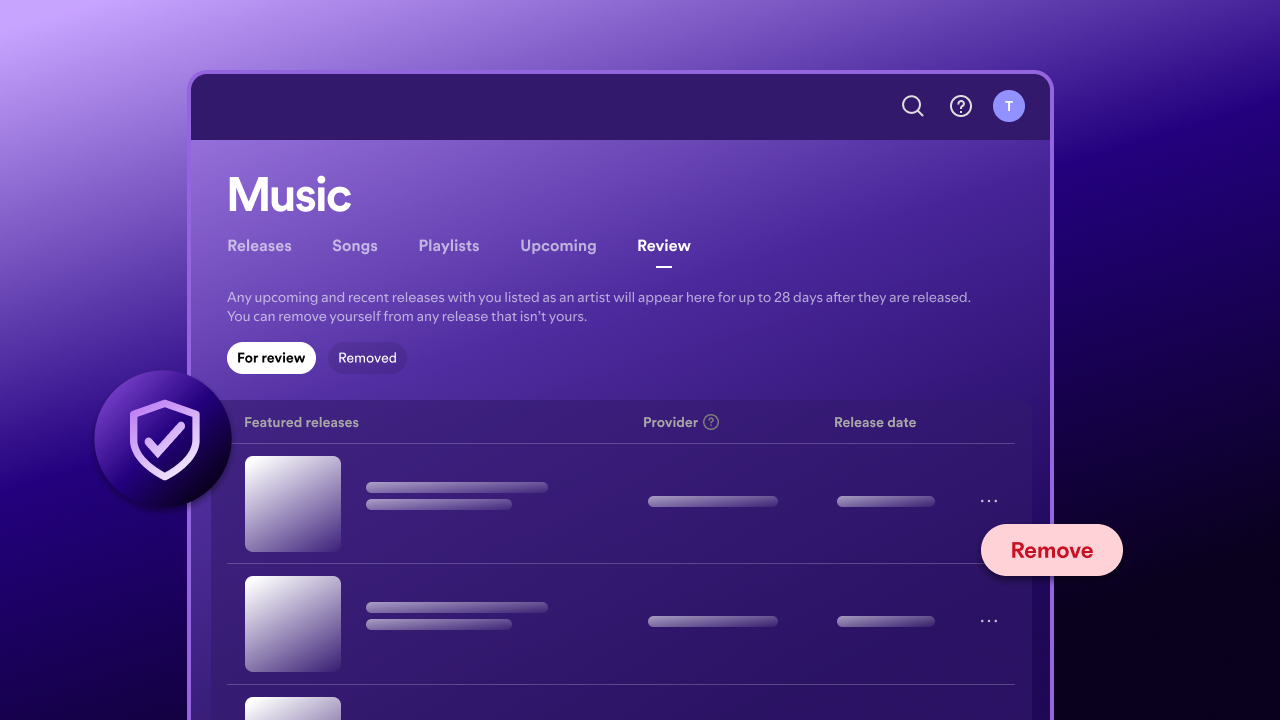
Artist Profile Protection notifies you when music is delivered to your artist profile and lets you remove yourself from incorrect releases.
With Artist Profile Protection, you can:
Get notified when releases are delivered to Spotify with your name attached
Review and remove yourself from eligible releases before they appear on your profile, or up to 28 days after
Make sure only the correct releases appear on your profile and count toward your stats and listener recommendations
If you don’t take action on a release, it goes live as scheduled with you listed as an artist.
Note: If you have opted-in to Block releases (in Advanced settings), you need to approve releases to make sure they go live on time.
Turning on Artist Profile Protection
For: Artist team Admins and Editors
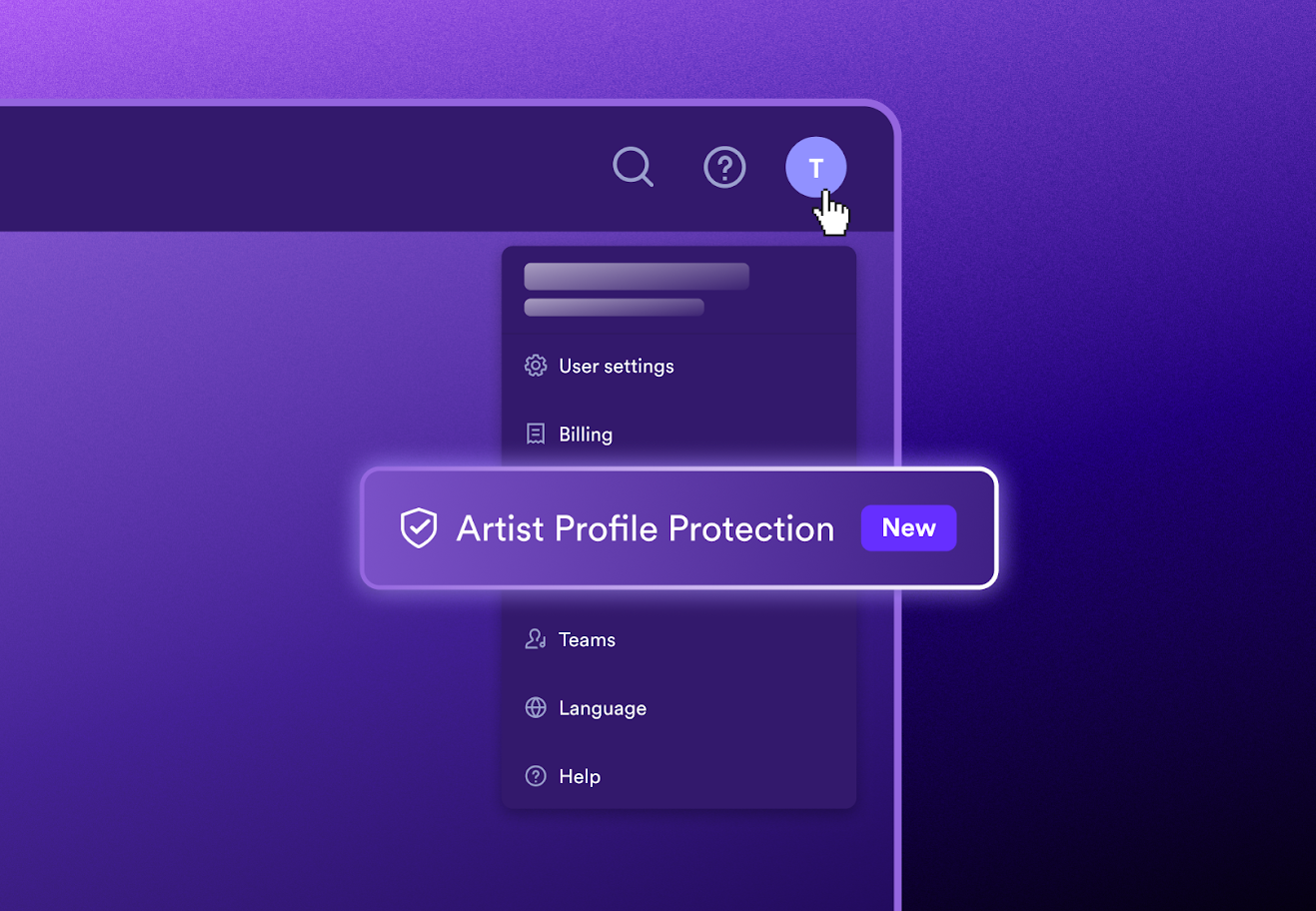
Open the user menu from your avatar, then select Artist Profile Protection to turn it on.
The default setting is Review releases.
Your current Artist Profile Protection setting appears in the Status column:
Review means releases go live unless you remove yourself
Block means releases need your approval to go live with you listed as an artist
Reviewing releases
With Review releases, you can review new releases delivered to Spotify that list you as an artist and remove yourself from eligible releases that aren’t yours.
Go to Music > Review on desktop or mobile web.
Use For review and Removed to find releases waiting for review or releases you’ve already removed yourself from.
Releases may list you as a:
Main artist
Featured artist
Remixer
Composer, orchestra, or conductor on classical releases
Actor
To remove yourself from a release that isn’t yours, select Remove next to the release.
If you don’t take action, the release goes live as scheduled with you listed as an artist. You have up to 28 days after the release goes live to take action.
Block releases (Advanced Setting)
You can also opt-in to Block releases in Advanced Settings. With this setting, releases need your approval before they can list you as an artist.
Note: If you’re using Block releases, you can switch to Review releases at any time:
Go to Artist Profile Protection from the user menu and turn it off.
Turn Artist Profile Protection back on and select the default Review releases setting.
This setting is best for artists who are in specific situations prone to misattributed releases – such as having a common artist name or frequently experiencing mismatch – and are comfortable actively managing their catalogue.
Approving releases
Go to Music > Approvals on desktop or mobile web.
Use All, Approved, Needs approval, and Declined to filter your releases.
You have up to 28 days after a release goes live to take action. If you don’t approve a release that needs approval, it won’t list you as an artist and may not go live on time.
Approvals can take up to 24 hours to process.
Releases show as:
Needs approval when you need to approve them
Pre-approved when they’re delivered with your artist key
When you approve a release, it appears on your profile and contributes to your stats and listener recommendations.
When you decline a release, it won’t list you as an artist, appear on your profile, or contribute to your stats or listener recommendations.
If you need to take further action after declining a release, you can report music mixed up with another artist or report illegal content on Spotify.
To undo an approval or rejection, contact us.
You don’t need to decline a release for other issues, such as an incorrect role, typo, or artwork. Learn how to fix problems with your music.
Using your artist key
Note: Artist keys are only available when using the Block releases setting.
Your artist key is a unique code that lets trusted distributors deliver pre-approved releases to your protected artist profile so legitimate releases can go live without manual approval.
You can find your artist key on the Artist Profile Protection page in Spotify for Artists when ‘Block releases’ is turned on.
Only share your artist key with distributors you trust. Don’t post it publicly. If you think someone has your artist key who shouldn’t, contact Spotify to refresh it.
Releases sent with your old key that aren’t live yet may need manual approval in Approvals.
Featured artists and remixers
If you’re a featured artist or remixer on a release, approve it for the release to go live with you listed as an artist.
If you don’t approve it or remove it via Artist Profile Protection, the release can still go live without you.
Note: If the main artist on the release uses Block releases, they need to approve the release before it can go live on Spotify for any artists listed.
Transitive approvals
Transitive approvals help reduce friction for catalogue migrations. It applies when a release is uploaded to Spotify that contains tracks similar to previously delivered tracks currently live on your profile. If a redelivery passes a series of validation checks, it goes live without triggering a review, meaning you won’t be notified, since the release is essentially identical to what is already on-platform.
Checking your content provider
Your content provider is the company that delivers your music to Spotify, such as a label, distributor, or delivery platform.
Checking the provider can help you confirm whether a release is legitimate. The provider name in Spotify for Artists may differ from the company name you normally work with.
If you don’t recognize a provider:
Confirm the release came from a provider you recognize
Check with your distributor before approving the release
Note: Releases from some providers may not be eligible for removal or approval. Artist keys may also not work with every provider.